Documentation
Getting Started
Project Summary Panel: Analysis Dashboard
Generated Report
Introduction
Projektra is a standalone environment for engineering
analysis, indexing, and project management of digital audio workstations
(DAWs). Unlike standard file browsers, Projektra uses
proprietary algorithms for direct parsing of project text files (Direct
Project Parsing), allowing you to “see” the arrangement structure, plugins
used, and media resources without having to launch the DAW itself.
The
application solves the fundamental problem of “blind” archiving by providing
engineers, composers, and producers with instant access to the metadata of
multiple projects through a single, unified interface.
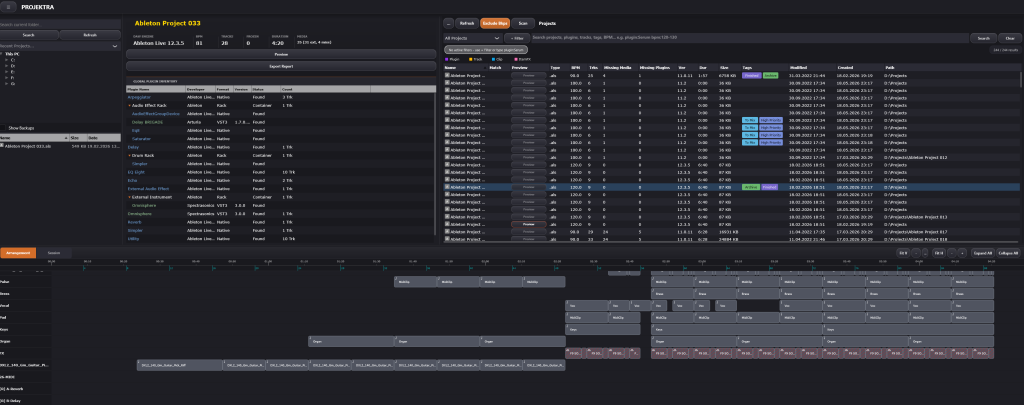
Key Features
- Deep Structural Analysis (Deep Inspection) Projektra generates a detailed Project Summary for each project file: Plugin Inventory: An accurate list of all VST2, VST3, and CLAP modules used in the project, along with their status (Found/Missing).
- Timeline Reconstruction (TrackView): Visualization of the arrangement, displaying Audio/MIDI clips and track structure. Media Pool Analysis: Determines the Source Path for all audio files, bit depth, sample rate, and “Offline” status.
-
Media Pool Analysis — Source paths, bit depth, sample rate, and offline
status for every referenced audio file
Compatible Project Formats
- .rpp, rpp-back
- .als
- .song
- .dawproject (with some limitations)
Technical Note: Projektra extracts structural and metadata information from text-based project data.  Binary audio streams, proprietary preset data, and encrypted content are not processed. This approach ensures fast, reliable parsing across thousands of files without DAW-specific dependencies or format-breaking updates.
Independence by Design: Projektra operates entirely separately from your DAW installation, just direct data extraction. Projects remain unmodified; the application reads but never writes to source files. All analysis happens locally on your machine.
Scythe, Tone, Wiggle, and Uno use the same functional documentation as the main Projektra application. They include the same workflow areas—project parsing, database indexing, deep content search, catalog organization, tags, reports, and media-aware session collection—but each edition is limited to its target DAW format.
AST-Powered Query Engine
Not a text box—an actual query language. Target specific dimensions: plugin name, track label, clip content, item-level FX, project metadata (BPM, duration, tags). Combine conditions with AND / OR / NOT and parentheses. The engine parses queries into a structured abstract syntax tree and evaluates them against indexed data, delivering precise results with predictable performance at scale.
Results: Sortable table with color-coded match types (Plugin / Track / Clip / ItemFX). Timeline view highlights exact match locations within the arrangement.
Self-Contained HTML Reports
Export complete project documentation as a single HTML file with zero external dependencies:
- Dashboard — Tempo, track count, duration, missing media, processor count
- Visual Timeline — Rasterized snapshot of track/clip layout (embedded as base64)
- Global Plugin Inventory — Name, status, version, developer (when available)
- Per-Track Structure — Routing, clip references, item-level effects
-
Media File Manifest — Full path list with format
metadata
All CSS and JavaScript embedded. No broken links, no path-dependent assets. Generated in a background thread. One file = one deterministic snapshot of project state at export time. Opens in any browser without the original DAW or project file—ideal for client handoffs, production briefs, or long-term archival where reproducibility is non-negotiable.
Tag System
Color-coded labels pinned directly to project files. Searchable via
tag: operator. Batch assign, clear, create, and edit colors.
Tags persist across sessions and integrate with batch-copy wildcards for
automated file organization workflows.
Audio Preview
Automatic detection and playback of preview files when they follow the
PRVP convention:PRVP_[ProjectFileNameWithoutExtension].ext
(e.g., PRVP_MySong.mp3)
Searches project folder and Previews/ subfolder. Supports WAV,
MP3, AIFF, FLAC, OGG, M4A, and other common audio and video formats.
Metadata-Driven Batch Copy
Copy selected projects to a destination folder—project files only, or each project with its referenced media in a dedicated subfolder. File and folder names can include metadata wildcards: BPM, DAW type, duration, track count, export date, tags.
Real-time progress display, and completion report with the ability to save and view the completed task in detail.
System Requirements

Windows 10 (version 1607 or later) or Windows 11 64-bit (x64)
Microsoft Visual C++ Redistributable 2015-2022 (x64)
Download: https://aka.ms/vs/17/release/vc_redist.x64.exe

Minimum Hardware
CPU: Dual-core, 2.0 GHz
RAM: 4 GB
Storage: 100 MB of free disk space (at least 500 MB recommended for cache, tags, and reports)
Display: 1280×720

Recommended Hardware
CPU: 4+ cores
RAM: 8 GB or more
Storage: SSD
Display: 1920×1080

Additional Notes
Internet access is required for license/trial verification
Activation & License Management
1. First-Time Activation
To start using Projektra, you need to activate your license:
- Launch the application.
- Enter your License Key in the activation prompt.
- Ensure your computer is connected to the internet for this one-time verification.
- Click Activate. Once confirmed, your license will be securely linked to your workstation.
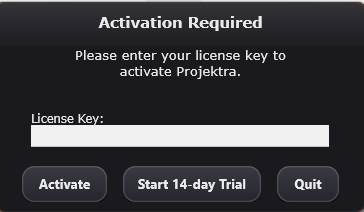
When you activate for the first time, you can also activate a 14-day trial license.2. Offline Usage
Enter your documentation text here. This paragraph uses the professional documentation styling with proper spacing and typography.
We understand that many professional studios keep their DAW workstations offline for stability and security. Projektra is designed with this in mind:
- Flexible Offline Mode: After initial activation, you can work offline for up to 7 consecutive days.
- Grace Period: If the application cannot verify the license after 7 days, it provides a 3-day grace period to ensure your workflow is never interrupted. Simply connect to the internet briefly within this window to refresh your license.
- Automated Verification: If an internet connection is available, Projektra will automatically refresh your license in the background without any manual input.
4. Moving Your License (Deactivation)
If you need to move Projektra to another studio computer:
- Open the main menu (the Hamburger Icon in the top-left corner).
- Select Deactivate License.
- An internet connection is required to release the license slot on the server.
- Once deactivated, you can immediately use your key to activate Projektra on a different machine.
Important Note
System Clock: Please ensure your system date and time are set correctly. Large discrepancies with global time may trigger a security lock to prevent license misuse.
Settings Dialog
VST Plugins
This section manages Projektra’s plugin scanning infrastructure and database.
VST Plugin Paths
Multi-line editor for scan directories. One path per line.
- Add Path…: Append folder via directory picker
- Clear Paths: Remove all configured paths
Database Management
- Stats Display: `Database: N plugins scanned`
-
Full Rescan
Scans configured paths for `.vst3` / `.dll` files
Auto-skips blacklisted plugins -
View Scanned Plugins
Opens `PluginListWindow`: searchable/sortable table
Columns: Name, Format, Version, Path, Date Created/Modified
Right-click → “Show Project Folder” -
Show Blacklist
Manage `blacklist.txt` entries (files that caused parser crashes)
Remove individual entries or clear all -
Clear Database**
Deletes entire plugin inventory (requires confirmation)
Interface
- Font Family: Default | Arial | Verdana | Tahoma | Segoe UI | Consolas
- Font Size: Small (12) | Medium (16) | Large (18) | Extra Large (20)
- Interface Scale: Tiny (75%), Compact (90%), Normal (100%), Large (125%), Hi-DPI
- Show TrackView Tooltips: Enabling/disabling tooltips when hovering over items in the TrackView.
- Restore last scanned folder on startup: When turned on, the last scanned image is shown at startup.
Data & Storage
Data Folder
- Default: `%AppData%\Projektra\`
- Browse… → Select custom location (requires restart)
- Reset to Default → Revert to `%AppData%` (requires restart)
Project Cache
- Stats: “Cache: N MB (X projects)”
- Clear Cache: Delete `project_cache.bin` (forces re-parse on next load)
- Prune Orphaned: Remove entries for deleted/moved files
Tags & Metadata
- Stats: “Tags: N tags, X assignments”
- Backup Tags: Export “tags.json”
- Restore Tags: Import “tags.json” (requires restart)
External Apps
- Audio Player: Path to executable for external clip preview. Filter: `*.exe;*.app;*.lnk`
- External Editor: Path to editor for raw project file inspection.
Project Navigation & Management
Projektra provides two complementary modes for working with your DAW files: a traditional File Browser for quick navigation, and a powerful Scanner tool for deep search and batch operations across large project libraries.
File Browser: Direct Navigation
The File Browser is located on the left side of the interface and follows a familiar two-panel layout.
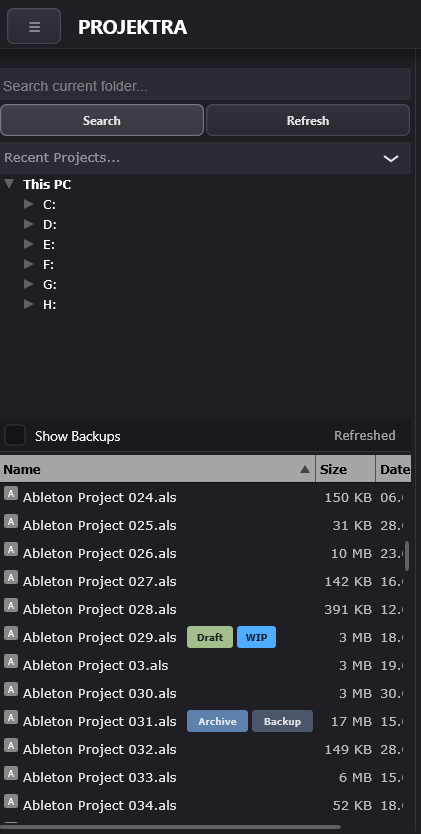
Directory Tree (Top Panel)
- Navigation: Click any folder to browse its contents. The browser remembers your last location between sessions.
- Tree Operations: Right-click folders to access context menu options (Open in Explorer, Copy, Cut, Paste, Delete)
File List (Bottom Panel)
Displays all DAW project files in the currently selected directory. Supported formats are filtered automatically:
-
.rpp,.rpp-bak,.als,.dawproject,.song
- Sorting: Click column headers (Name, Size, Date) to sort. Click again to reverse order.
- Selection: Single-click to select. Double-click to load the project into Projektra’s main view (TrackView + Summary).
-
Multi-Selection:
Hold
CtrlorShiftto select multiple files. Right-click for batch operations (Tag Management, Copy, Cut, Delete).
Folder-Level Search
At the top of the browser, you’ll find a search box for filtering files within the current directory.
-
Usage: Enter a filename fragment
(e.g.,
Mix_v2) and pressReturnor click “Search”. - Live Filtering: Results update as you type. Clear the box to return to full directory view.
-
Advanced Query Support: You can use the same syntax
as the
Scanner (e.g.,
plugin:Pro-Q bpm:140) to filter cached projects, but there will be no highlighting of elements in TrackView
Recent Projects Dropdown
The “Recent Projects…” dropdown provides instant access to your last 10 opened files.
- Behavior: Selecting an item from the list automatically navigates to its parent folder and highlights the file.
Backup File Filtering
The “Show Backups” toggle (located in the toolbar separator between tree and file list) controls visibility of backup files.
When disabled (default), the browser hides:
.rpp-bak(Reaper backups)- Ableton Live backup files (any file in a folder named Backup)
-
Generic backups/autosaves (files
with
bak,backup, orautosavein the extension)
Scanner: Advanced Search & Batch Processing
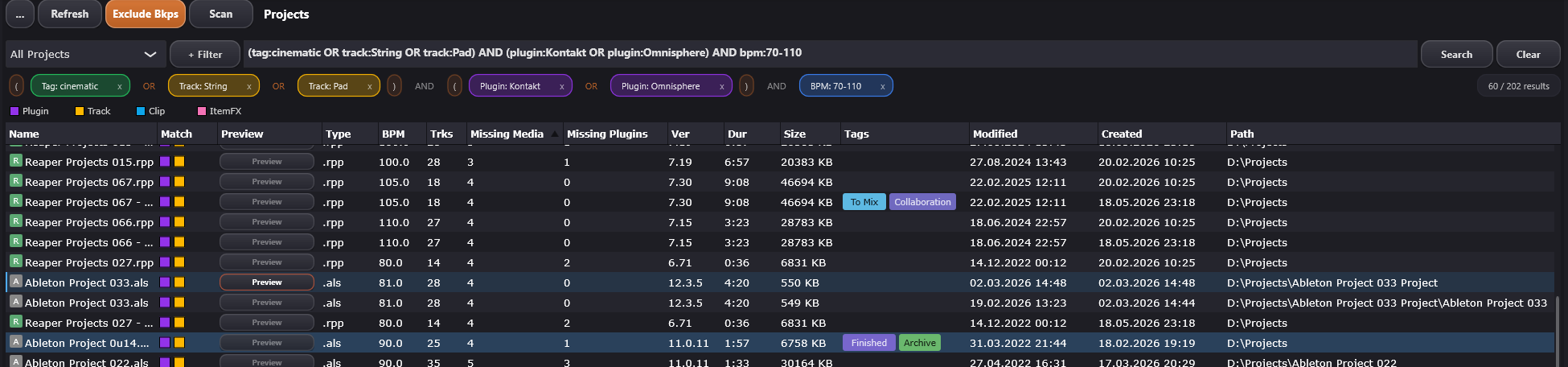
While the File Browser is ideal for familiar projects, the Scanner is designed for power users who need to search across thousands of projects by metadata, not just filenames. The Scanner is accessible from the Search tab on the right side of the interface.
When to use the Scanner:
- You need to find all projects using a specific plugin
- You want to find projects based on a certain criterion (bpm, duration, date etc.)
- You’re auditing your entire archive for missing plugins or broken file paths
- You need to batch-export or organize projects based on search criteria
Initiating a Scan
-
Select Target Folder
Click the “…” button (folder icon). Choose the root directory containing your projects -
Start Indexing
Click the “Scan” button. Projektra recursively traverses the selected folder, parsing every compatible DAW file.
“Scan” – Clears the project cache for the current folder and runs a full scan of all files. Use when projects have changed significantly or cache may be stale.
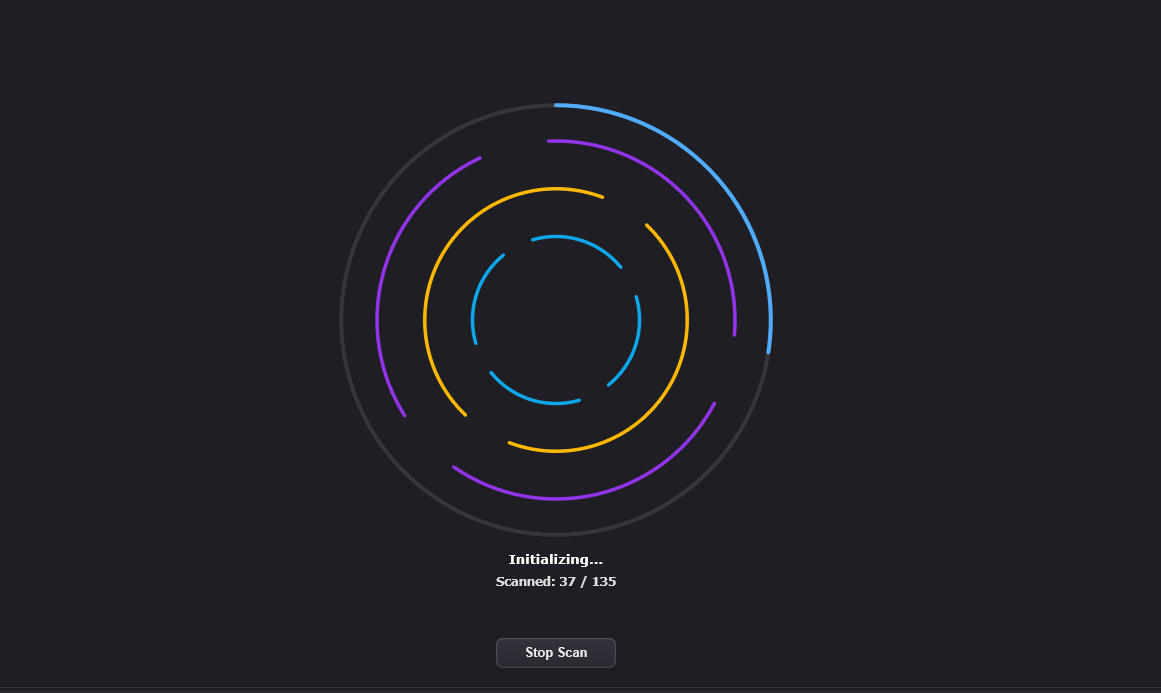
Progress Indicator: A loading spinner appears, showing: Files discovered (total count), Files processed (parsed). Stop Scan: Click the “Stop Scan” button in the spinner overlay to cancel at any time.
-
Exclude Backups
Enable the “Exclude Backups” toggle to skip:
.rpp-bak, files (Cockos Reaper)
Files inside folders named Backup (Ableton)
Files matching Ableton’s timestamp backup pattern (e.g.,Project [2024-01-15 143022].als)
Any file withbak,backup, orautosavein its extension
Smart Caching Engine
- Refresh: Re-scans the current folder using the cache where possible; Does not clear the project cache. |
Projektra doesn’t re-parse unchanged files. Here’s how it works:
-
Cache Key: Each project is fingerprinted using:
FilePath+LastModifiedTime+FileSize -
Cache Hit: If the file hasn’t changed since the last
scan, metadata is retrieved instantly from the database
(
.cachefile in AppData). - Cache Miss: If the file is new or modified, Projektra parses it and updates the cache.
Restore last scanned folder on startup: In "Settings" → "Interface", the option “Restore last scanned folder on startup” (or similar) controls whether the Scanner tab reopens with the last used root folder and table at startup, or whether the app shows the welcome screen instead.
Performing Searches
Once indexed, use the search box to filter results by metadata fields. Projektra’s query engine supports field-specific filtering, range queries, logical operators, and nested expressions for surgical precision.
Basic Field Searches
Search within specific project attributes:
plugin:FabFilter
| All projects using any FabFilter plugin |
track:Bass
| Projects containing a track named “Bass” |
| Projects with an audio/MIDI clip named “Intro” |
| Projects where the filename contains “Mix_v2” |
tag:Draft | Projects tagged with “Draft” |
Range Queries
Filter by numeric or time-based values:
| Projects with tempo between 120 and 130 BPM |
| Fast-tempo projects (above 140 BPM) |
| Slow-tempo projects (below 90 BPM) |
| Projects at exactly 128 BPM (±0.5 BPM tolerance) |
| Projects lasting 3 to 5 minutes (MM:SS format) |
duration:>600 | Long projects (over 10 minutes, in seconds) |
Multi-Level Search (Track vs. Clip Plugins)
Projektra distinguishes between track-level plugins and item/clip-level effects (e.g., Reaper Item FX):
| Finds Pro-Q anywhere: track inserts OR clip FX |
| Only finds Pro-Q on individual clips (item-level processing) |
| Projects with a “Vocals” track that has clip-level de-essing |
Logical Operators (AND, OR, NOT)
Combine conditions for complex queries:
| Projects using either Serum or Massive |
| Fast projects with FabFilter plugins (implicit AND) |
| Mid-tempo projects with a “Drums” track |
| Projects without Kontakt (NOT operator) |
| Fast projects that are NOT tagged as drafts |
| Projects using Serum, but NOT on a track named “Lead” |
Parentheses & Nested Logic
Group conditions for surgical precision:
| Fast bpm projects using either Pro-Q or Pro-C |
| Bass tracks processed with Serum or Massive |
| Drum projects in two specific tempo ranges |
| plugin:FabFilter AND -(tag:Draft OR tag:Archive) |
| Slow ballads with clip-level vocal de-essing |
Query Builder, Query Chips, Presets

Query Builder (Search Builder)
Below the search bar, you’ll find the condition builder with the following controls:
-
Join:
AND/OR– determines how the condition is combined with the current query -
Polarity:
Include/Exclude– includes or excludes matches -
Field:
Any text,Project,Track,Plugin,Item FX,Clip,Tag,BPM - Condition/Operator: available operators depend on the selected field
- Value / Value2: condition values (range fields use the second value field)
-
Add: appends the built condition to the
searchBox
Query Chips (Visual Condition Blocks)
This displays normalized conditions of the current query as human-readable blocks.
- Each filter condition is a colored chip by field type (
Plugin,Track,Clip,Item FX,Tag,BPM,Duration, etc.). - Exclude conditions show a red Exclude badge inside the chip.
- AND, OR, and parentheses
( )appear as structural elements between chips. - Click a chip to highlight the matching text in the search box; click × to remove that condition.
- Long queries collapse to two rows with +N more; click to expand (up to six rows).
- On parse error: Invalid query, chips paused — chips freeze until the syntax is fixed.
- With an empty query: No active filters — use + Filter or type plugin:Serum.
Presets
The Filter Panel opens from the + Filter button next to the search bar. It is a full-screen overlay for building queries without memorizing syntax.
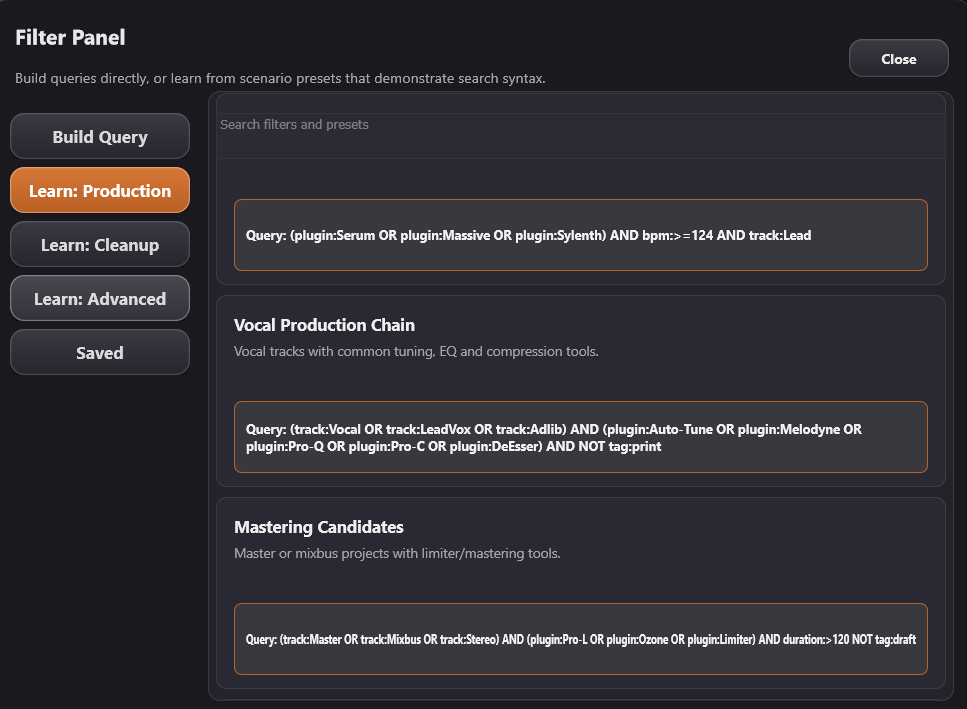
- Build Query – Quick inserts: field tokens (
plugin:,track:, …),OR,Exclude / NOT, and Add condition (opens the structured Query Builder) - Learn: Production – Ready-made production scenarios (EDM leads, vocal chains, mastering, sound design, etc.)
- Learn: Cleanup – Audit and cleanup queries (missing media/plugins, drafts, archives, backups)
- Learn: Advanced – Wildcards, nested OR groups, quoted plugin names, file-type filters, syntax aliases
- Saved – Save, apply, and delete custom query presets
Each card shows a title, short description, and a Query preview. Clicking a card inserts the token at the cursor or replaces the search box with a full example query. The panel has a search field to filter cards across all sections. Click outside the panel (or press Esc) to close it.
Results Table
| Column | Description |
|---|---|
| Name | Project file name. |
| Match | What matched the search (e.g. Plugin, Track, Clip, ItemFX); colour-coded. |
| Preview | Button to play a linked preview clip (if available). To make the pre-listen feature active, the project folder must contain an audio or video file with the project name and the PRVP_ prefix. |
| Type | Project type (e.g. Reaper, Ableton). |
| BPM | Tempo |
| Trks | Track count. |
| Missing Media | Number of undiscovered media |
| Missing Plugins | Number of missing plugins |
| Ver | DAW version. |
| Dur | Duration |
| Size | File Size |
| Tags | Assigned tags (coloured). |
| Modified | Last modified date/time. |
| Created | Creation date/time. |
| Path | Full file path. |
Batch Operations & Context Menu
Right-click any row in the results table
Single-project actions
- Open in DAW: Launch project in DAW (also works via double-click)
- Show Project Folder: Open project folder in Windows Explorer
- Show in App Browser: Navigate to file in File Browser panel (left panel)
- Copy Name: Copy filename to clipboard
- Rename: Rename file
Batch operations (work with multi-selection):
- “Copy To… (Projects)” or “Copy To… (Projects & Media)”: Copies the selected tags to the specified directory.
- Manage Tags: launches the tag editor
- Copy Tags from same-name file…:It allows you to solve problems with tags disappearing if you have moved a project with assigned tags to another directory.
- Clear Tags: Clears the tags of selected projects.
- Delete: Deletes the selected tags.
In the trial version, you can only select "Append Tags" with the "Copy To... (Projects)" or "Copy To... (Projects & Media)" function.Batch Copy
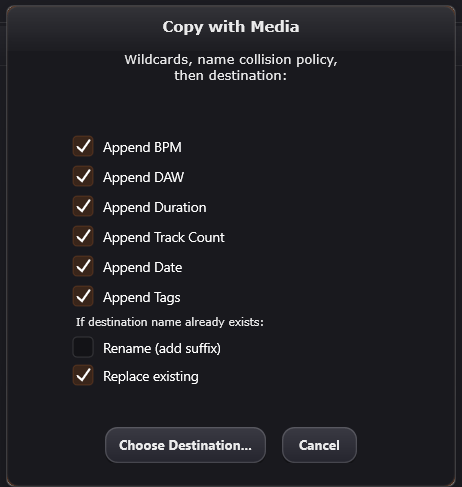
When the user chooses “Copy To… (Projects)” or
“Copy To… (Projects & Media)” the user can
choose which metadata to append to folder/file names:
Append BPM
Append DAW (and version)
Append Duration
Append
Track Count
Append Date (last modified date)
Append Tags
(as e.g. `#tag1 #tag2`)
Also specify the behavior when a file with the same name
is found (replace or add a suffix)
Copy To… (Projects Only)
- Supports multi-selection
- Shows progress overlay with: Overall progress (X / Y files copied) Current file being copied
- “Cancel” button to stop
Copy To… (Projects & Media)
- Copies project + all referenced audio files. For each selected project, the app creates a subfolder in the destination (name based on project + wildcards), copies the project file into it, and copies referenced media files into the same subfolder.
- Limitation: Disabled for `.dawproject` files
After the copy is complete, you will receive a notification with details and the option to open the report.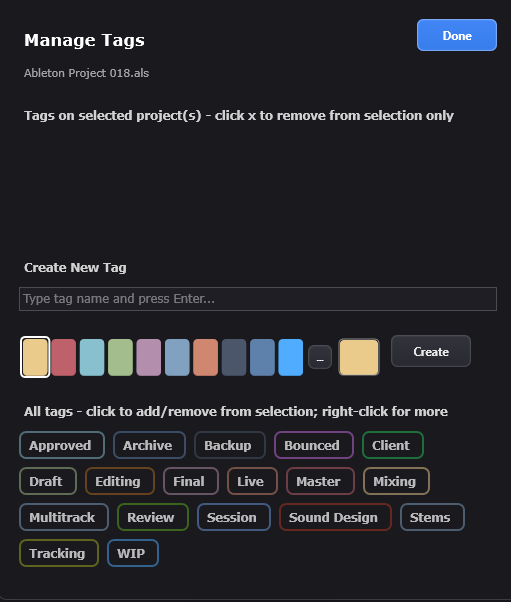
Tagging System
The tagging system offers a flexible way to organize your library
through custom color-coded labels, accessible via the context menu or
the Ctrl + T shortcut. You can easily
create new tags, customize their colors, or delete them entirely,
assigning up to 8 tags per file from a total library of 50 unique
names. All data is automatically stored in
a tags.json file,
supports Undo operations, and migrates
seamlessly when projects are moved within the application. Fully
searchable via the tag:Name query, these
high-visibility badges allow you to identify project categories,
statuses, or genres at a glance.
In the trial version, you cannot create your own tags.
Real-Time Visual Highlighting System
Projektra doesn’t just filter search results—it visually highlights where and how each match occurs across multiple layers of your project. This instant feedback transforms search from a text-based operation into a spatial analysis tool.
Search Results Table: Color-Coded Badges
In the Search tab results table, each project displays a “Match” column with colored squares indicating the match types found:
- Purple Square = Plugin match (somewhere in the project)
- Golden Square = Track name match
- Sky Blue Square = Clip name match
- Magenta Square = Item-level FX match
TrackView: Highlighting
When you double-click a search result, the project opens in TrackView with live highlighting that pinpoints exactly where matches occur:
Track-Level Highlighting
- Golden Background Glow: Track headers with name matches get a subtle golden wash across the entire header area.
- Purple Left Border: Tracks using matched plugins display a 3-pixel purple vertical bar on the left edge of the header.
Clip-Level Highlighting
- Sky Blue Clips: Clips whose names match the search term turn bright sky blue.
- Magenta “FX” Badge: Clips with matched item-level FX display a glowing magenta “FX” badge in the top-left corner. The clip itself has a contour of the same color.
Live Updates During Typing
The highlighting system is reactive:
- As you type in the search box (Browser or Scanner), results update in real-time.
- When you clear the search box, all highlighting instantly disappears, returning to default colors.
- If you load a new project while a search is active, the highlighting adapts to the new project’s structure.
Contrast & Accessibility
All highlight colors are chosen for maximum contrast against Projektra’s dark UI:
- Disabled tracks (grayed out) still show highlights, but at reduced opacity (50%).
- Hidden tracks maintain faint highlights (30% opacity) so you can see matches even in collapsed folders.
- Text legibility is preserved—clip names remain white even on colored backgrounds, with automatic shadowing for readability.
TrackView: Interactive Project Visualization

TrackView is a real-time visual renderer. Think of it as a read-only session view that preserves track hierarchies, clip positions, plugin routing, and temporal relationships.
Dual View Modes
-
Timeline Ruler: Dual-layer ruler showing:
Top Row: Real time (MM:SSformat) with second markers
Bottom Row: Musical bars (auto-calculated from project BPM) - Track Lanes: Horizontal rows with clips positioned along the timeline
Session View (Grid Layout)

Optimized for Ableton Live and Bitwig Studio projects.
- Ableton Layout: Tracks as vertical columns, Scenes as horizontal rows
- Bitwig Layout: Tracks as horizontal rows, Scenes as vertical columns
Track Hierarchies & Folder Management
TrackView preserves your project’s organizational structure:
Folder Depth Visualization
- Indentation: Child tracks indent 15px per depth level (up to 5 levels)
- Folder Expander: Click the arrow icon next to folder names to collapse/expand
Track State Indicators
Projektra displays track status with prefix labels and coloring:
| State | Indicator | Header Color | Example |
|---|---|---|---|
| Normal | None | Default (white text on dark grey) | 01. Bass |
| Frozen | [F] | Normal | [F] 05. Synth Stack |
| Return/Send | [R] | Normal | [R] Reverb Bus |
| Hidden | [H] | Medium grey text | [H] 12. Unused Track |
| Disabled | [OFF] | Red text | [OFF] 08. Old Drums |
Clip Visualization
Every audio and MIDI clip is rendered with color-coded context and interactive metadata.
Visual Elements
- Clip Shape & Color: Rounded Rectangles with subtle gradient.
-
Color Priority:
Search highlight color (sky blue for name matches).
Default grey as fallback. -
Type Icons.
Audio Clips: Waveform icon (sine pattern) in top-left corner
MIDI Clips: Musical note icon in top-left corner -
FX Badge:
Displayed when clip has item-level FX (e.g., Reaper Item FX)
White “FX” text in a bordered box (right of audio icon)
Search Highlighting: Badge glows magenta when matched byitemfx:query - Missing File Indicator: Red diagonal hatch pattern overlays clips with broken file paths
Clip Information (Hover Tooltips)
Hover over any clip to reveal a detailed metadata panel:
Name: Bass_DI_Take3.wav
Start: 00:32 (8.00 bars)
Length: 01:15 (18.75 bars)
Sample Rate: 48.0 kHz
Bit Depth: 24 bit
File: D:\Sessions\2026_Project\Audio\Bass_DI_Take3.wav
Interactive Zoom Controls
Navigate large projects with precision zoom and smooth panning.
Zoom Methods
| Action | Horizontal Zoom | Vertical Zoom |
|---|---|---|
| Mouse Wheel | Ctrl + Wheel | Shift + Wheel |
| Toolbar Buttons | [ - ] / [ + ] | [ - ] / [ + ] |
| Keyboard Shortcuts |
Ctrl + / Ctrl -
| Shift + / Shift - |
The application can export reports that include a snapshot of the TrackView. The snapshot is generated with an adaptive scale (track height and time scale) so that large projects remain readable in the report. This behaviour does not require any user action beyond exporting the report. Horizontal zoom range is 0.1x to 50x (relative to base pixels-per-second). Vertical zoom range is 0.5x to 5x.
TrackView does not edit the project; it only displays data from ProjectInfo and reacts to selection and search highlight. Project file path is stored so that "Open Project in DAW" and "Open Project Folder".Smart Fit Buttons
- Fit to Width: Auto-zoom timeline to show entire project duration
- Fit to Height: Auto-zoom vertically to fit all tracks in viewport (respects folder collapse state)
Interactive Click Actions
TrackView responds to mouse interactions for deeper project exploration:
| Click Type | Target | Action |
|---|---|---|
| Single Click | Track Header | Opens Track Summary panel (shows plugins, media files information) |
| Single Click | Clip | Highlights clip in Last Selected Item panel and Media Files table. |
| Double Click | Clip (Audio) | Plays an audio clip in the default audio player or in the player specified in the settings |
| Right Click | Clip | Opens context menu (Play, Show in Explorer, Open in External Editor, Open in DAW etc.) |
Tooltips
If tooltips are enabled in Settings (Interface → Show TrackView Tooltips), moving the mouse over a clip shows a tooltip with:
- Clip name.
- Start time (minutes:seconds and bars).
- Length (time and bars).
- Sample rate and bit depth (from file metadata when available).
- Source file path.
Project Summary Panel: Analysis Dashboard
Global Summary View
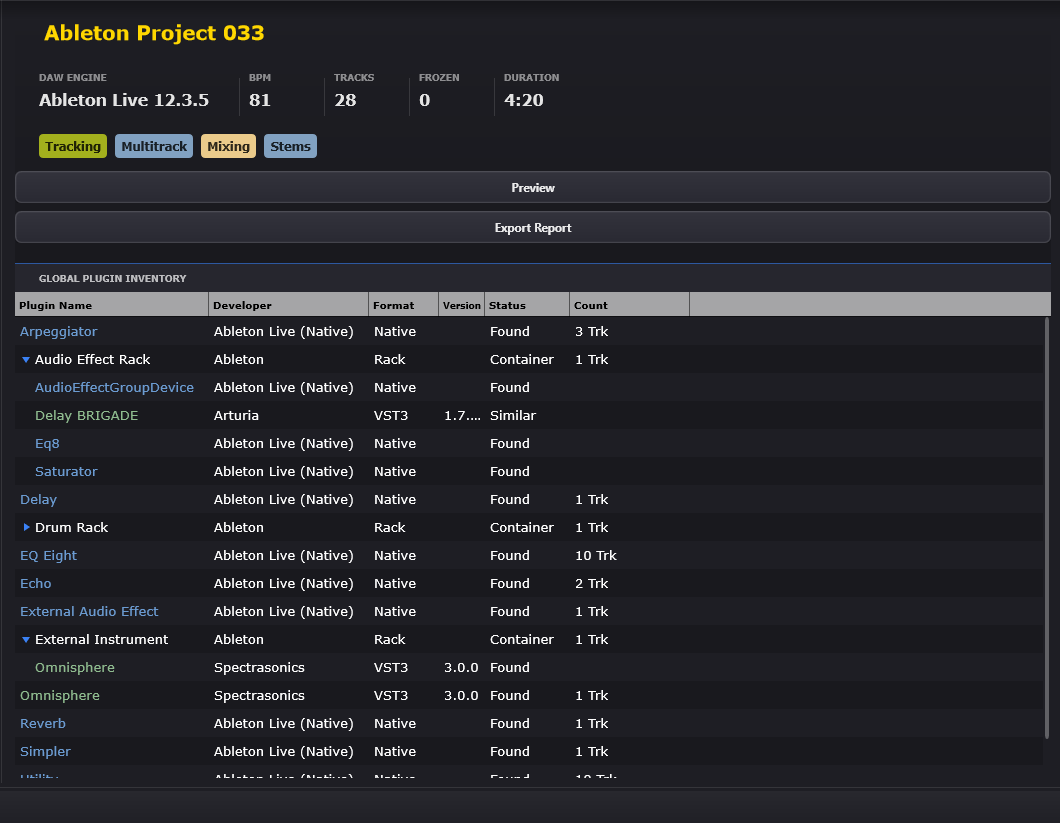
The Project Summary Panel (located to the right of the File Browser) serves as Projektra’s analytical control center. It dynamically adapts to display three distinct views depending on your interaction context:
- Global Summary – Overview of the entire project
- Track Details – Specific track’s plugins
- Last Selected Item – Details of the clicked audio/MIDI clip
This is the default view when you load a project. It provides a bird’s-eye overview of the session’s information and plugin inventory.
Header Section
- Project Title: Displays the project filename. If the name exceeds the panel width, it truncates with a tooltip showing the full name.
- DAW Engine & Statistics Bar: Below the title, a 5-column statistics panel shows:
| Stat | Description | Example |
|---|---|---|
| DAW Engine | DAW Engine | Reaper 7.47 |
| BPM | Project tempo | 140 |
| Tracks | Total track count (including folders) | 48 |
| Frozen | Number of frozen tracks | 3 |
| Duration | Total project length (MM:SS format) | 4:32 |
Tags Row (If Present)
If you’ve tagged the project via the Context Menu, colorful tag badges appear below the stats:
Action Buttons
- Preview: Plays the associated audio preview file (if there is a media file in the project folder with the project name and the PRVP_ prefix).
- Export Report: Launches the HTML report generator.
Global Plugin Inventory Table
This is the power feature of the Summary Panel: sortable plugin database for the current project.
Columns:
- Plugin Name: The plugin display name (color-coded by status).
- Developer: Manufacturer or “Native” for built-in plugins.
- Format: VST2, VST3, Native, Rack, M4L, JS.
- Version: Installed version number (cross-referenced with Plugin Database).
-
Status:
Found,Missing,Similar,Unused. -
Count: Usage statistics (e.g.,
5 (3 Trk / 2 Itm)= 5 total instances, 3 on tracks, 2 on clips).
Color Coding (Plugin Name Column):
- Green: Plugin found in database.
- Red: Missing plugin (not installed).
- Blue: Native plugin (DAW built-in).
- Yellow: Unused plugin (in the project, but not assigned to a track).
Hierarchical Expansion:
Nested plugins (e.g., Ableton Racks, Multi-Instruments) display as expandable containers:
- Click the arrow icon (left of the name) to reveal child plugins.
- Containers auto-expand if any child plugin is missing.
Sorting
Click any column header to sort (e.g., sort by Status to group all missing plugins at the top). Click again to reverse order.
Track Details View
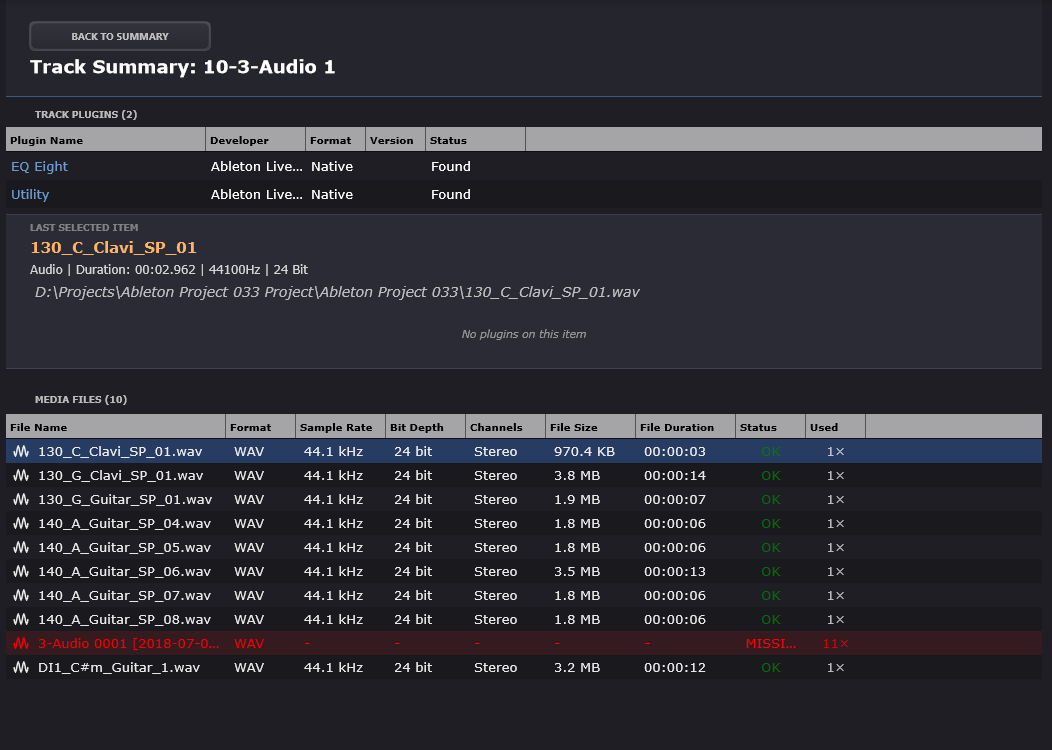
When you click a track header in
TrackView, the Summary Panel switches to Track Analysis Mode.
Header
- BACK TO SUMMARY” button returns you to Global Summary view.
- Track Analysis: [Track Name]
Track Plugin Table
Similar to the Global Inventory, but filtered to show only plugins and media on the selected track.
Last Selected Item Panel
When you click a clip in TrackView, an expandable panel slides in Track Summary, revealing detailed metadata.
Item-Level Plugins Table
Below the clip info, a dedicated plugin table shows plugins applied at the clip level (Reaper and Studio One Item FX only—other DAWs don’t support this).
Format-Specific Display Notes
Projektra adapts its data presentation to honor each DAW’s internal architecture:
Reaper
-
VST Prefixes: Plugins display as
VST: PluginName (Developer). The parser strips this prefix for the Plugin Name column and extracts the developer. - Item FX: Clip-level plugins appear in the Last Selected Item panel (unique to Reaper and Studio One).
-
JSFX: Native scripts show format
as
JSFXwith developer asReaper (Native).
Ableton Live
- Racks: Instrument/Audio Effect Racks display as hierarchical containers. Child devices are nested with indentation.
-
M4L Devices:
.amxdfiles show format asM4L(Max for Live) with developerAbleton / M4L. -
Native Devices: Built-in devices
(e.g.,
Compressor,EQ Eight) are auto-detected and colored blue.
Studio One
- FX Chains: Multi-insert effects display as expandable
- groups
- Native FX: Plugins with suffixes `[FX]` or `[Note FX]`
- recognized as built-in
- Multi-Instruments: Similar to Ableton Racks, display as hierarchical containers
- Multi-Instruments: Similar to Ableton Racks, display as hierarchical containers
.DAWproject limitations
All Hosts
Projektra reads only what each DAW writes into project.xml — not a full native project.
- Plugin/media inventory reflects the export, not the live session.
- Audio: external files can be played; embedded ZIP audio is listed but not playable without extraction.
- Nested chains appear only if the exporter wrote them.
Cubase / Nuendo
- No dedicated MIDI tracks — only instrument tracks carry MIDI.
- MIDI clips are often missing from Arrangement even when the track exists.
- Bundled plugins may export as plain VST3 and look “missing” without host-specific detection.
- Audio is often embedded in the archive with little XML metadata.
Studio One
- Strongest plugin detection; audio usually external (playable if paths resolve).
- Folders, Multi Instrument, and
.fxpackchains are often incomplete vs native.song.
Bitwig
- Best track/session structure and nesting.
- Nested devices (containers, Grid internals) usually export as top-level inserts only.
- Audio is usually embedded in the archive.
Unknown / generic DAWproject export
- May fall back to Bitwig-style layout and native-plugin rules.
- For full plugin and media audits, native project formats are more reliable where supported.
Generated Report
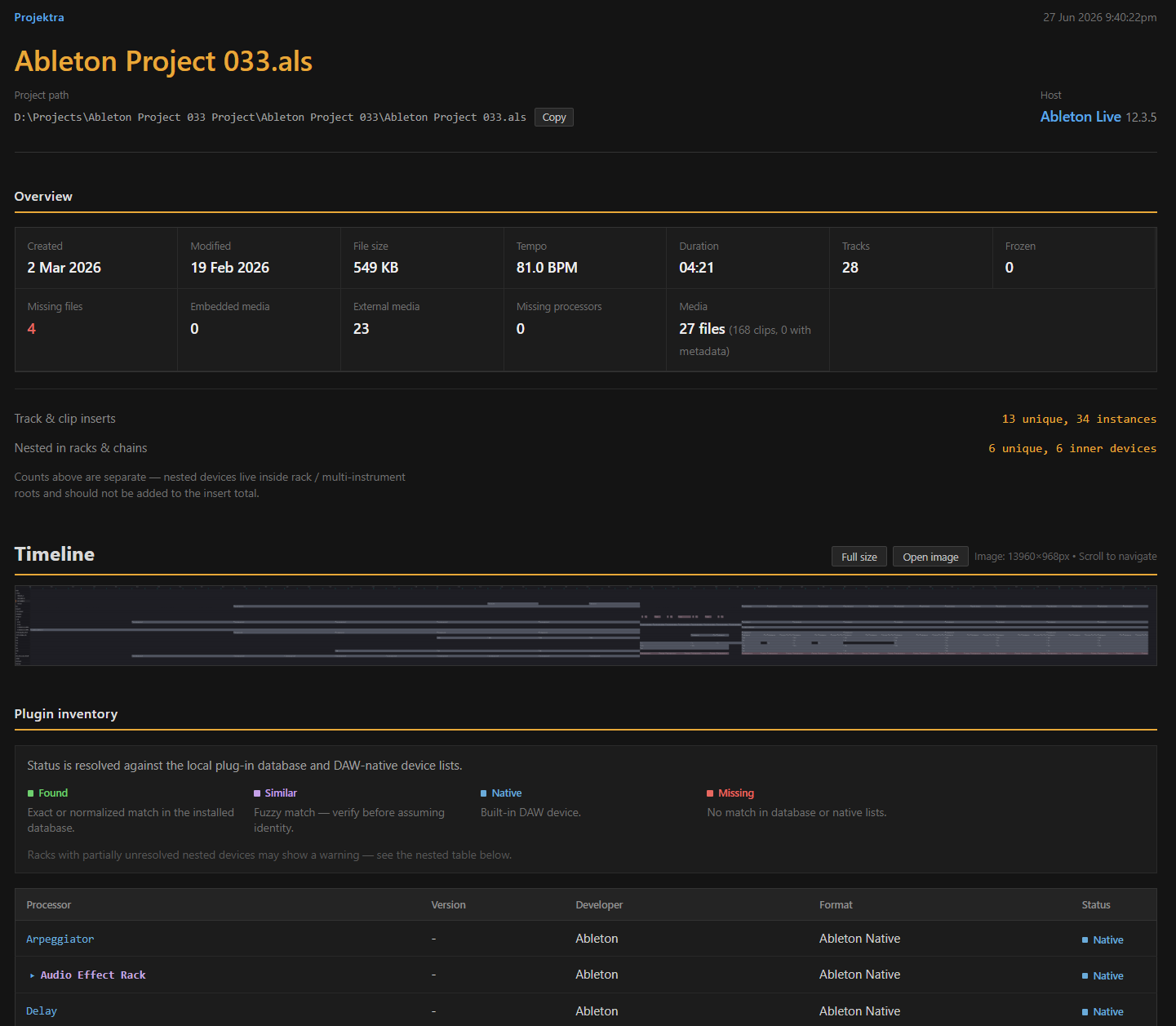
The application can generate an HTML report for the currently loaded DAW
project. The report is a single, self-contained HTML file that you can open
in any web browser, archive, or share. It includes project metrics, an
optional visual timeline (image of the TrackView), a plugin inventory with
status (found, missing, native), project structure (tracks, plugins, clips),
optional item-level effects (Item Event FX), and a media files summary.
A project must be loaded in the application. The report is built from
the same project data that is shown in TrackView and the details panel.
In
the details panel (right side of the main window), the project summary area
has an “Export Report” button. Click it to start the export process.
A
dialog titled “Select Report Sections” appears. The description at the top
says: “Choose which sections to include in the report.”Six checkboxes
control which sections are written to the HTML file.
By default, all
are enabled:
- Dashboard (Project Metrics)
- Visual Timeline Overview (with the ability to zoom in on the entire graphical representation)
- Global Plugin Inventory
- Project Structure & Assets
- Item Event FX
- Media Files Summary
Report Sections in Detail
Dashboard (Project Metrics)
When the “Dashboard (Project Metrics)” section is included, the report shows a row of cards with key project and file data:
- Created. File creation date and time.
- Last Modified. File last modification date and time.
- File Size. Size of the project file (KB or MB).
- Tempo. Project tempo in BPM.
- Duration. Total project duration (formatted as minutes:seconds).
- Track Count. Number of tracks.
- Frozen Tracks. Number of frozen tracks (if applicable).
- Missing Files. Number of unique missing media files (audio clips whose source file was not found). A warning icon is shown if this is greater than zero.
- Media Assets. Total number of audio clip references (excluding MIDI).
- Total Processors. Total plugin/processor count (track and item level). If any plugins are unresolved (missing), the count is followed by the number of unresolved in parentheses.
The report header also shows the project file name, any tags assigned to the project (with their colours), the full file path with a “Copy Path” button, the DAW name and version, and the report generation date and time.
Visual Timeline Overview
When “Visual Timeline Overview” is included and a timeline snapshot is
available, the report embeds an image of the TrackView as it would appear
for the project (tracks and clips). The image is generated at an adaptive
scale so that large projects remain readable.
Below the section title
there are controls:
- Zoom to Full Size. Expands the image to its natural size so you can scroll to see detail.
- Reset Zoom. Returns the image to the previous view (shown after zooming).
- Open in New Tab. Opens the timeline image alone in a new browser tab.
Global Plugin Inventory
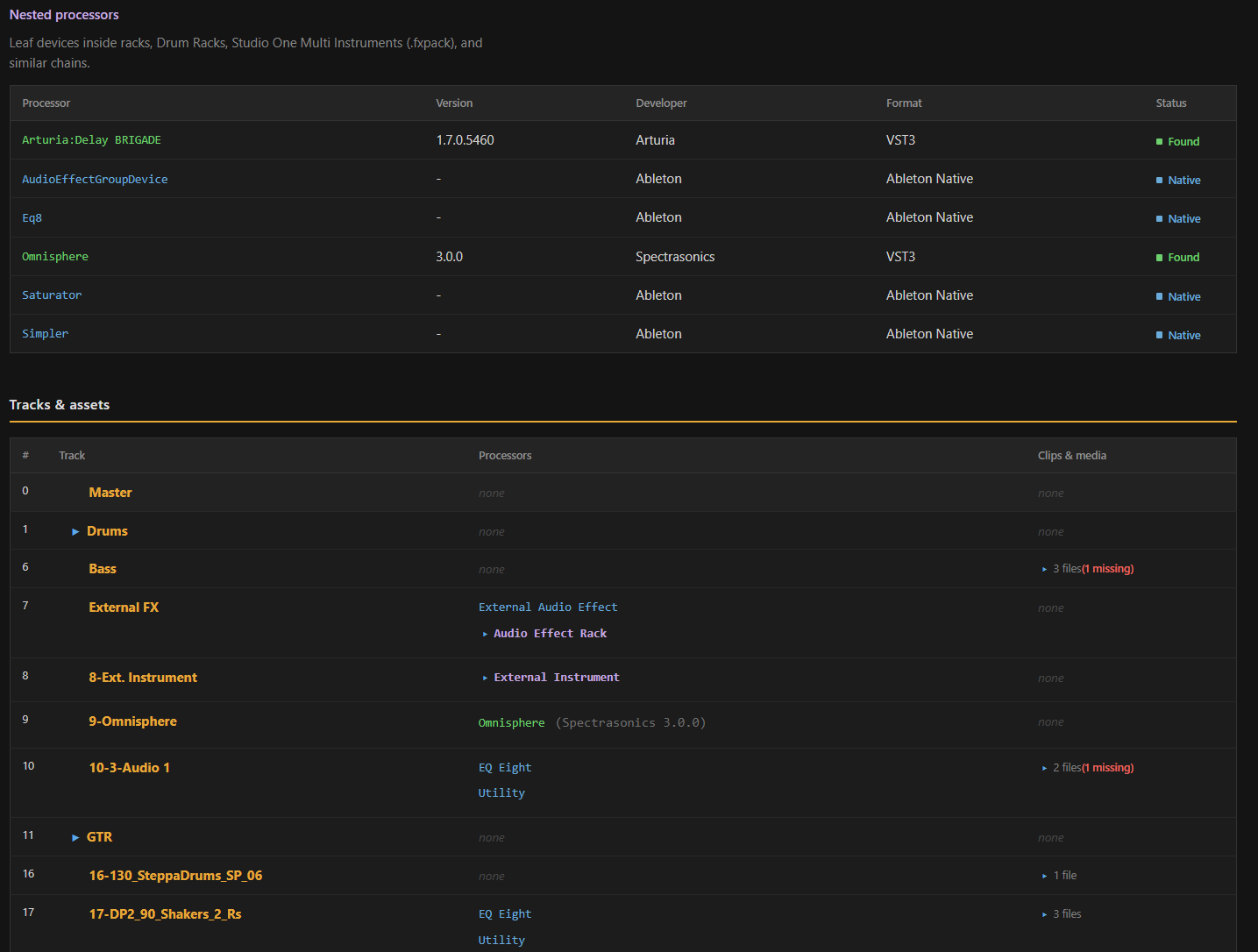
When “Global Plugin Inventory” is included, the report contains a table of all plugins used in the project (on tracks and on items). Columns typically include:
- Plugin Name. Name and, for some formats, hierarchy (e.g. Ableton racks). Nested entries can be expandable (details/summary). Names may be colour-coded: for example green for found, blue for native, red for missing.
- Version. Plugin version when known (from the plugin database).
- Developer. Developer or manufacturer when known.
- Format. Format (e.g. VST3, Ableton Native, JSFX, Reaper Native) or “Missing.”
- Status. Badge such as “Found,” “Missing,” “Native,” “Unused,” or “Some Missing” (e.g. for Ableton racks with missing sub-plugins).
- Usage. In non-Ableton reports, a column showing how many times the plugin is used (e.g. “5 (3 Trk / 2 Itm)” for track vs item usage).
Plugins are resolved against the application’s plugin database (from Settings → VST Plugins). If a plugin is not in the database, it is marked as missing or unresolved. Native and built-in plugins (e.g. Reaper JSFX, Ableton devices) are detected and marked as native so they are not reported as missing.
Project Structure & Assets
When “Project Structure & Assets” is included, the report has a table with one row per track. Columns:
- Track number (for top-level tracks).
- Track Name. Name and folder hierarchy. Folder tracks have an expand/collapse control (triangle). Child tracks are indented. Badges may show FROZEN, HIDDEN, DISABLED when applicable.
- Plugins & Instruments. List of plugins on that track. Racks or nested structures are rendered in a compact, expandable form. Missing plugins are visually highlighted.
- Clips & Media Assets. A summary of audio clips on the track: count and names, with multiplicity (e.g. “x3” if the same clip name appears several times). Missing media are indicated (e.g. “missing: 2”). Each clip name can be expanded to show the source file path(s). Paths can be clicked to copy to the clipboard (as in the rest of the report where “Copy” is offered).
This section gives a per-track overview of structure and media without listing every item effect; item effects are in the Item Event FX section.
Item Event FX
When “Item Event FX” is included, the report lists clips (or items) that have one or more plugins (item-level effects). This is especially useful for Reaper (item FX) and similar DAWs. The table includes:
- Clip / Item. Clip name (or “Unnamed”) and an icon indicating audio or MIDI.
- Parent Track. Name of the track that contains the clip.
- Type. Audio or MIDI.
- Event FX Chain. The list of plugins on that clip/item.
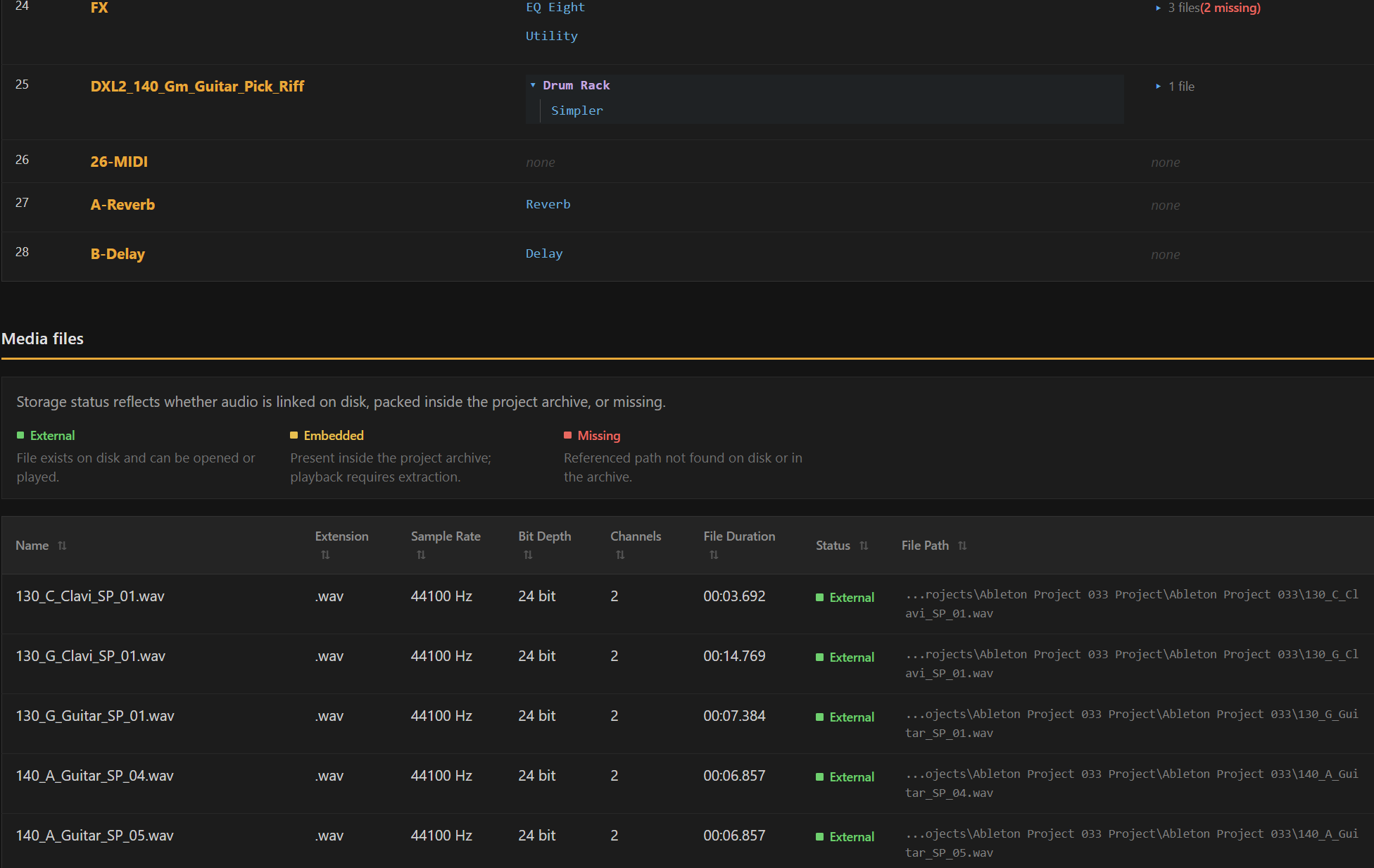
Media Files Summary
If the Media Summary option is enabled, the report will list the media files in a table with the ability to sort by various criteria.
Plugin Status and Native Detection
- Found. Plugin was found in the application’s plugin database (from Settings → Full Rescan / View Scanned Plugins). Version and format are shown when available.
- A likely installed analogue was found by fuzzy matching, such as token, version, reordered-word, or substring comparison. Check this row before assuming it is the same plug-in.
- Missing. Plugin is not in the database and is not treated as native. You may need to rescan VST paths or install the plugin.
- Native. Built-in or DAW-native plugin (e.g. Reaper JSFX, ReaPlugins, Ableton devices, Max for Live, Studio One native). These are not reported as missing.
- Unused. In Studio One a plugin can be in the project but marked unused; the report may show this separately.
- Some Missing. Used for composite devices (e.g. Ableton racks) where some nested plugins are missing and others are present.
Accurate plugin status depends on having scanned your VST folders in Settings. If you have not run a full rescan, many third-party plugins will appear as “Missing” even if they are installed.
Tags
If the project has tags (from the Scanner / Collections), they appear in the report header with their colours. Tags are read from the application’s tag database; they are not stored in the project file. The report generation time and project path are also shown in the header.
Technical Notes
- Output format: single HTML file, UTF-8. No separate assets (images or CSS files) are written; the timeline image and styles are embedded.
- If the user cancels during generation, the thread exits and the overlay closes; the output file may be missing or partial. The application does not delete a partially written file.
- “Open Report” in the completion dialog opens the file with the system default application (e.g. the default browser). The dialog has two buttons: the first is “Open Report”, the second is “Close.”
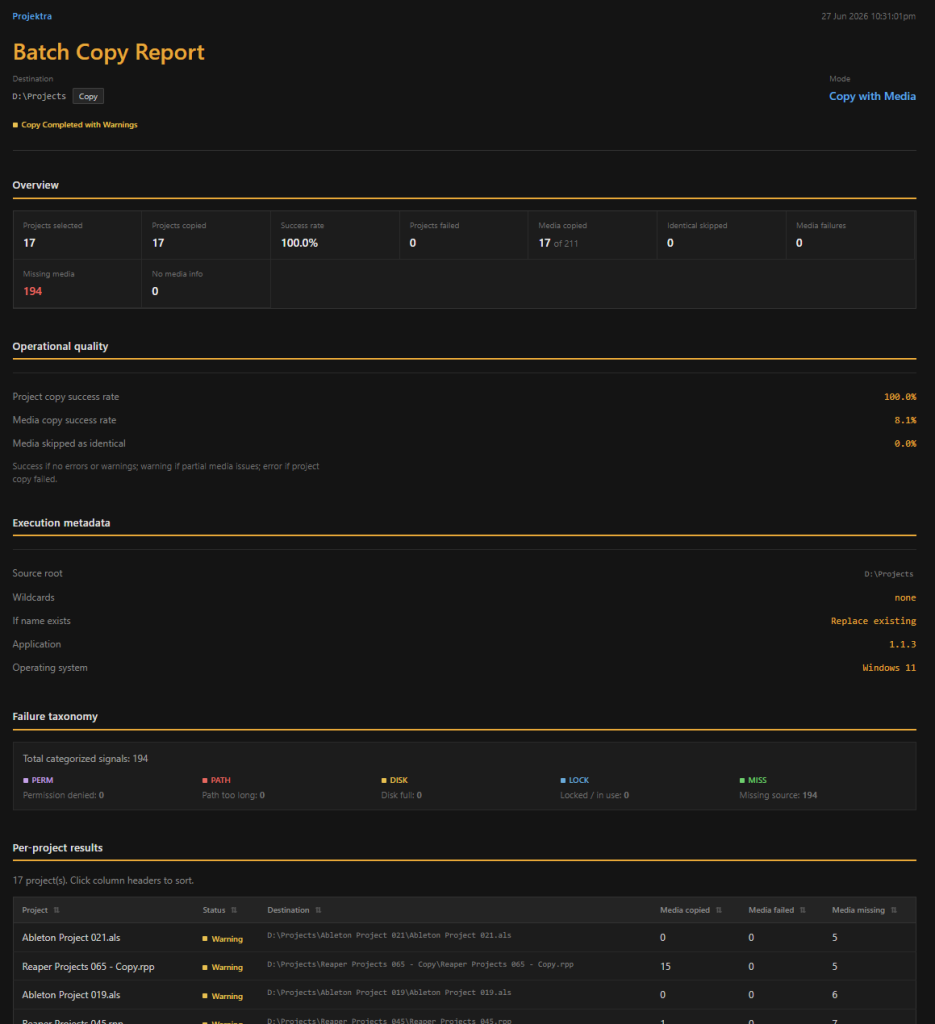
Batch Copy / Copy with Media Report
After each operation, the app generates a detailed report in the destination
folder (_copy_report_YYYYMMDD_HHMMSS.html) and shows a summary
dialog.
What the report includes
- Operation summary: selected projects, copied projects, failed projects.
- Media summary (for Copy with Media): copied media files, failed media files, missing source files.
- Execution metadata: source root, destination folder, enabled wildcards, app/OS version, and duplicate-name behavior.
- Failure taxonomy: permission issues, path length issues, disk space issues, locked/in-use files, missing sources.
- Per-project results: status and destination for each project.
- Detailed findings: failed projects/files, missing media paths, collision/rename events, runtime errors.
- Timing: The total duration of the operation, the total time for copying project files (and media files if media is enabled), the number of files, and, if necessary, the estimated remaining time for preparation, project analysis, and administrative actions are displayed.
Duplicate name behavior (important) Before copying, choose one mode:
-
Rename (add suffix): if target name already exists, a new unique name
is created (e.g.
(2)). - Replace existing: existing destination project/folder is removed and replaced by the new copy.
How to interpret statuses
- Success: project copied without warnings.
- Warning: project copied, but media had partial issues (missing/failed files).
- Failed: project copy could not be completed.